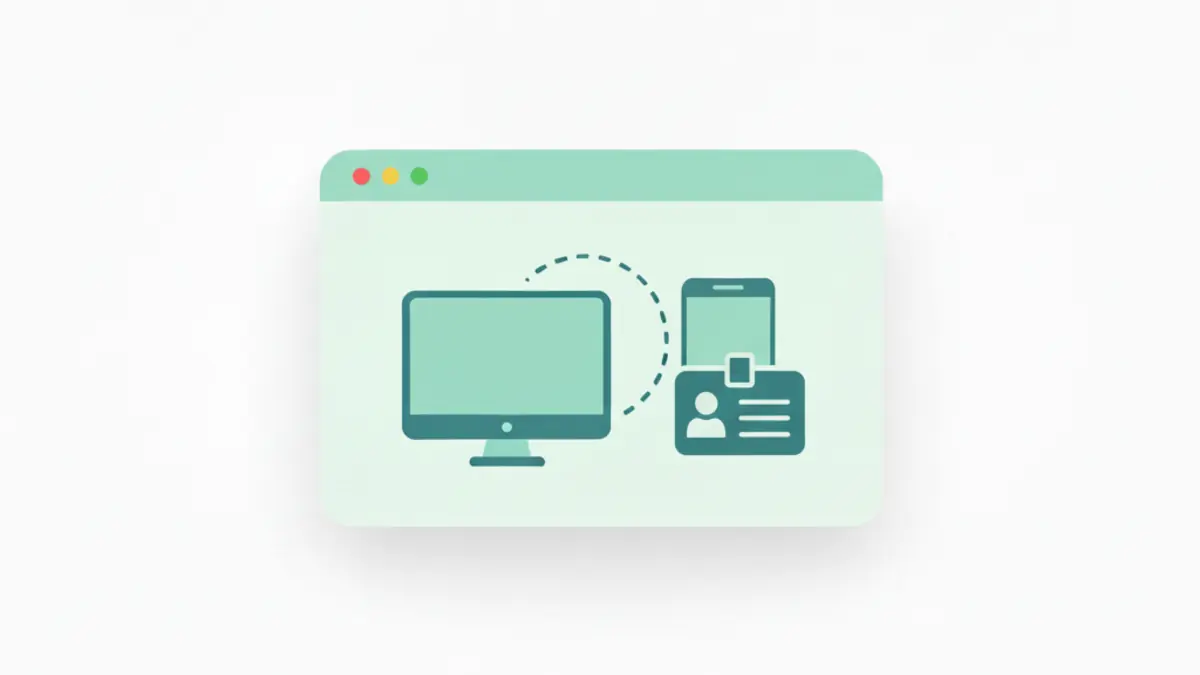
Confirm what the website sees (user agent + viewport)
Start with facts, not guesses. Open the User Agent Checker and confirm:
- Browser and version look correct (Chrome/Edge/Firefox/Safari)
- OS and device type match what you’re actually using
Then open the Screen Test and note your viewport width. Some sites switch to a “mobile” layout at small widths even on desktop (for example, if your window is narrow or zoomed in).
Quick answer (most common fixes)
- Turn off DevTools device emulation (if enabled)
- Disable any extension that changes your user agent or injects “mobile” rules
- Clear site data for the affected website (resets mobile/desktop preference cookies)
- Re-check User Agent Checker and reload the site
How sites decide “mobile vs desktop” (fast checklist)
Most sites use one or more of these signals. Use this table to pinpoint what to fix before you change random settings.
| Signal a site uses | How to confirm quickly |
|---|---|
| User agent (browser string) | Check User Agent Checker and confirm it matches your real browser/device |
| Viewport width (responsive breakpoints) | Check Screen Test and maximize your window to increase viewport width |
| Saved preference cookie/storage | If only one site is “stuck” on mobile, clear that site’s data and reload |
| Forced redirect (m. subdomain or app banner flow) | Manually remove m. from the URL (if present) and reload after clearing site data |
Fix 1: Disable DevTools device emulation (easy to miss)
If you ever used mobile emulation for testing, it can stick around longer than you expect.
- In Chromium browsers (Chrome/Edge), open DevTools and ensure Device Toolbar (phone/tablet icon) is off.
- If the site immediately returns to desktop layout after you turn this off, you’ve found the cause.
Re-test by refreshing the site and re-checking the User Agent Checker.
Fix 2: Remove user-agent spoofing and “mobile forcing” extensions
Any extension that modifies headers, rewrites requests, or injects scripts can change how a site classifies you.
To isolate:
- Open an Incognito/InPrivate window (extensions are usually disabled by default)
- Visit the failing site
- If it looks normal in private mode, the problem is an extension
Extensions to pay attention to:
- User-agent switchers and automation tools
- Privacy tools that modify request headers
- “Open in app” bypass tools
- Aggressive ad blockers in advanced modes
If you need the extension for other sites, allowlist the affected domain so the extension stops rewriting that site.
Fix 3: Clear the site’s “mobile preference” cookie/storage
Many sites store a cookie that forces the mobile version once you’ve been routed there.
- Open browser site settings for the domain (from the lock icon)
- Remove the site’s stored data (cookies/storage)
- Reload the site and sign in again
This resets the site’s cached “choice” so it can detect your desktop browser fresh.
Fix 4: Check viewport width and zoom (desktop can look “mobile”)
Some sites classify “mobile” by viewport width, not by user agent.
- Use the Screen Test and look at the Viewport value.
- If your viewport is small (for example, a snapped window on a small laptop), the site may choose its mobile UI.
Try:
- Maximizing the browser window
- Resetting zoom to 100% (browser menu → Zoom)
- Moving the window to a larger monitor (if available)
Fix 5: Update the browser (sites may block older engines)
If your user agent shows an unusually old browser version, some sites will fall back to a simplified experience.
- Use our Full Browser Test to confirm key APIs are present.
- Update Chrome/Edge/Firefox/Safari, then reload.
Fix 6: When it’s actually a site-side decision
Some sites intentionally force mobile experiences for certain pages (especially sign-up flows) or show “open in app” banners. If:
- Your user agent is correct
- Your viewport is wide
- The issue persists across browsers
…then the site is likely making a deliberate choice. In that case, your best options are:
- Use the site’s own “Desktop site” or “Full site” link (if provided)
- Contact the site’s support team and ask for the desktop URL
Verify the fix
- Re-check User Agent Checker (correct device type + browser version).
- Re-check Screen Test (reasonable desktop viewport width).
- Reload the site in a normal window and confirm it stays in desktop layout after sign-in.