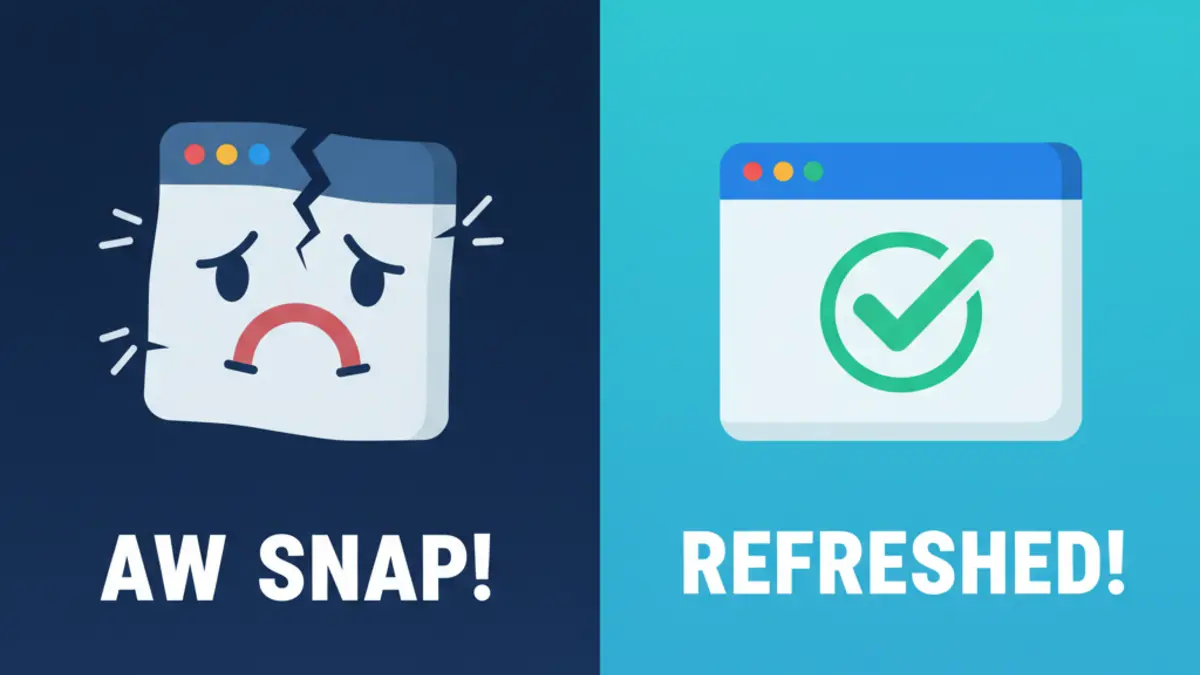
Confirm stability with the Browser Test
Open the Full Browser Test. If the page crashes before finishing, the crash is reproducible and likely tied to your profile, extensions, or GPU. If it stays open, run the browser FPS test and watch whether its moving marker and chart remain active. Keep the test open while you try each fix and see when the crash stops.
Fix 1: Update and restart
Crashes often disappear after a fresh build and reboot.
- Chrome / Edge: Menu > Help > About and apply updates. Click Relaunch.
- Reboot the OS to clear stale GPU processes before retesting.
Fix 2: Disable extensions that hook every tab
Aggressive extensions are the top cause of STATUS_ACCESS_VIOLATION.
- Disable ad blockers in advanced modes, script blockers, VPN/proxy extensions, download managers, and screen recorders.
- Use Incognito/InPrivate with extensions off. If crashes stop, re-enable extensions one by one until you find the culprit.
Fix 3: Reset experimental flags
Misconfigured flags cause renderer crashes.
- Visit
chrome://flags(oredge://flags) and click Reset all → Relaunch. - Avoid enabling rendering flags like Zero-copy rasterizer, GPU rasterization tweaks, or WebGPU toggles unless you need them for testing.
Fix 4: Toggle hardware acceleration after updating GPU drivers
GPU instability triggers many "Aw Snap" errors.
- Update GPU drivers (NVIDIA/AMD/Intel) from the vendor site.
- Then test with Settings > System and performance > Use hardware acceleration when available toggled Off. If stability improves, leave it Off until a newer driver is available. If performance drops but crashes stop, you confirmed a GPU path issue.
Fix 5: Clean the browser profile cache
Corrupted profile data can crash the renderer on page load.
- Close the browser.
- Rename the
Defaultprofile folder (keeps data safe):- Windows:
%LOCALAPPDATA%\Google\Chrome\User Data\Default→ rename toDefault.bak(Edge:...\Microsoft\Edge\User Data\Default). - macOS:
~/Library/Application Support/Google/Chrome/Default(Edge path similar). - Linux:
~/.config/google-chrome/Defaultor~/.config/microsoft-edge/Default.
- Windows:
- Reopen the browser. If crashes stop, import bookmarks from the old folder and keep the fresh profile.
Fix 6: Check security software and sandbox conflicts
Security tools can inject DLLs that crash Chromium.
- Temporarily pause browser shields or banking-protection modes, then rerun the Browser Test. Re-enable protections afterward.
- Ensure only one antivirus is installed; multiple real-time scanners often conflict.
Fix 7: Free memory and tab hoarding
Low memory triggers tab reloads and crashes under load.
- Close unused tabs, especially video-heavy sites.
- In Windows Task Manager or macOS Activity Monitor, end runaway background processes.
- Avoid running simultaneous benchmarks while meeting apps are open.
Fix 8: Remove stale sandbox parameters from shortcuts
If you previously used command-line flags like --no-sandbox or --disable-features=RendererCodeIntegrity, remove them. Launch the browser normally to restore security features that also stabilize rendering.
Fix 9: Scan for policy-based crashes on managed devices
- Open
chrome://policyoredge://policyand check for experimental render flags or forced extensions. - If IT enforces extensions or flags that cause crashes, share the failing result from the Browser Test and request a policy review.
Verify the fix
Reopen the Full Browser Test and let it finish. Then leave the browser FPS test visible for a minute. If both remain open without "Aw Snap," browse heavy sites (Figma, Meet, YouTube) to confirm stability. If crashes persist even in a brand-new profile with extensions off, reinstall the browser from the official site after exporting bookmarks.