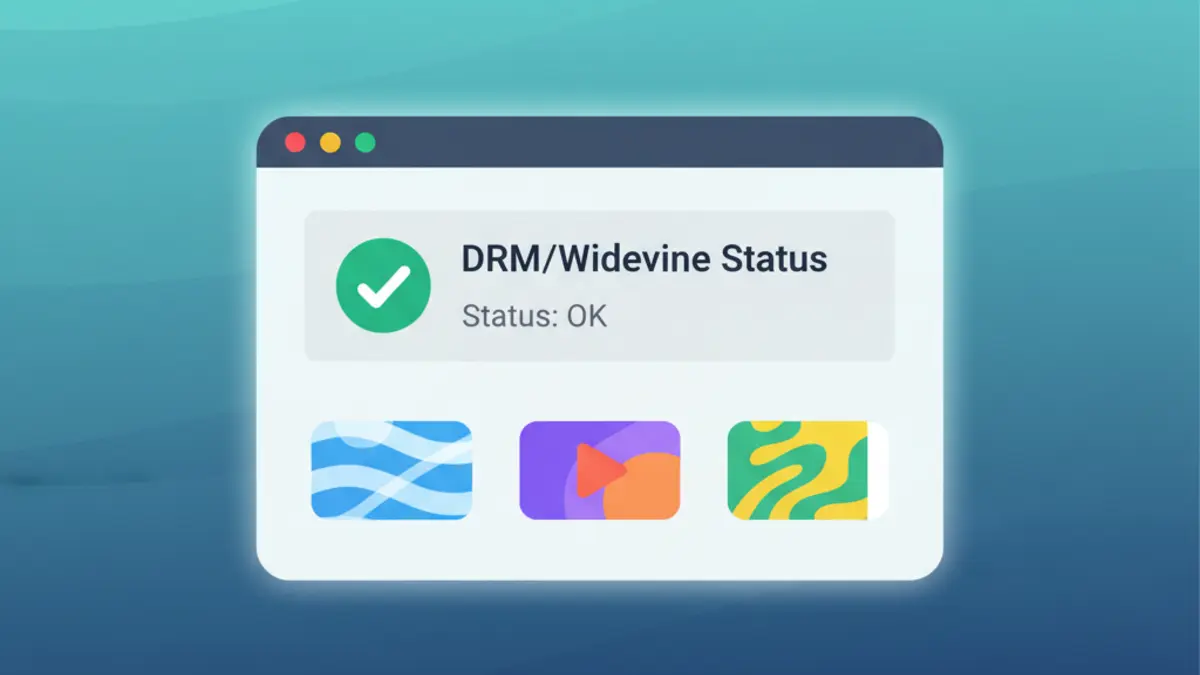
Confirm Widevine status first
Open the Codec Test. A healthy browser shows Widevine: available and lists supported DRM key systems. If the line is missing or red, keep the test open, apply each fix below, and rerun the test. Streaming sites often show errors like M7357-1003, F7701-1003, or DRM not supported when Widevine is missing.
Fix 1: Update the browser to refresh the Widevine bundle
Widevine ships with Chromium-based browsers and Firefox. An outdated build can ship an expired CDM.
- Chrome / Edge: go to Menu > Help > About. Let the browser download updates, then click Relaunch.
- Firefox: Menu > Help > About Firefox. Apply the update and restart.
- After restart, rerun the Codec Test. The Widevine line should reappear with a current version (not 0.0.0.0).
Fix 2: Force a Widevine component update (Chrome/Edge)
If the version still shows 0.0.0.0 or missing:
- Type
chrome://components(oredge://components). - Find Widevine Content Decryption Module.
- Click Check for update. The status should move to Component updated.
- Restart the browser and rerun the Codec Test.
If the component fails to update, continue to the next fix.
Fix 3: Clear the Widevine folder so the browser rebuilds it
Corrupted files stop Widevine from loading.
- Close the browser.
- Delete the Widevine folder:
- Windows:
%LOCALAPPDATA%\Google\Chrome\User Data\WidevineCdm(Edge:...\Microsoft\Edge\User Data\WidevineCdm). - macOS:
~/Library/Application Support/Google/Chrome/WidevineCdm(Edge path is similar under~/Library/Application Support/Microsoft Edge). - Linux (Chrome):
~/.config/google-chrome/WidevineCdm(Edge:~/.config/microsoft-edge/WidevineCdm).
- Windows:
- Reopen the browser. It will download a fresh copy. Confirm in the Codec Test.
Fix 4: Enable protected content settings
DRM playback can be blocked if protected content is disabled.
- Chrome / Edge: Settings > Privacy and security > Site settings > Protected content. Turn on Sites can play protected content.
- Firefox: type
about:config, setmedia.eme.enabledto true, and setmedia.gmp-widevinecdm.enabledto true. - Reload the streaming site and rerun the test.
Fix 5: Remove conflicting extensions and privacy filters
Extensions that spoof or strip DRM headers can block Widevine.
- Disable user-agent spoofers, ad blockers in aggressive modes, and privacy extensions that modify request headers.
- In Chrome/Edge, try an Incognito/InPrivate window with extensions off, sign in to the streaming site, and test playback.
- If playback works, re-enable extensions one by one or add the site to their allowlists.
Fix 6: Reinstall Widevine packages on Linux
Some Linux distros keep Widevine in a separate package.
- Ubuntu/Debian (Chromium):
sudo apt update && sudo apt install chromium-widevine. - Arch/Manjaro: install
chromium-widevinefrom the repo or AUR. - Snap/Flatpak users: ensure the Widevine plugin is enabled for your browser package.
- Restart the browser and run the Codec Test again.
Fix 7: Check enterprise or school policy blocks
Managed devices can disable DRM.
- Chrome/Edge: visit
chrome://policyoredge://policyand look forDefaultDRMSettingorDRMBlockedForDomains. - If set to block, only your admin can change it. Capture the failing line from the Codec Test to show why streaming is blocked.
Fix 8: Sync system time and clear HDCP issues
DRM validation fails when the device clock drifts or HDMI/HDCP handshakes fail.
- Sync system time automatically in your OS settings, then restart the browser.
- If using an external monitor, reseat the HDMI/DisplayPort cable or try another port to refresh HDCP.
- Retry the stream and run the Codec Test; Widevine should show as available.
Verify the fix
Return to the Codec Test. You want to see Widevine: available with a non-zero version. Play a DRM stream in the same session to confirm. If the test still fails, switch to another Chromium profile or Firefox to rule out a damaged profile before reinstalling the browser from the official site.